 minute read
LSU
The LSU page allows you to manage the logical storage units (LSUs) contained on OST storage servers on the DXi. You can view information about existing LSUs, add or edit LSUs, and delete LSUs.
To access the LSU page, on the OST page, click the LSU tab.
Tasks
Use the LSU page to perform the following tasks:
- View information about existing LSUs, See Logical Storage Unit List.
- Add a new LSU to the system. See Adding an LSU.
- Edit properties for an existing LSU. See Editing an LSU.
- Delete an LSU from the system. See Deleting an LSU.
 Logical Storage Unit List
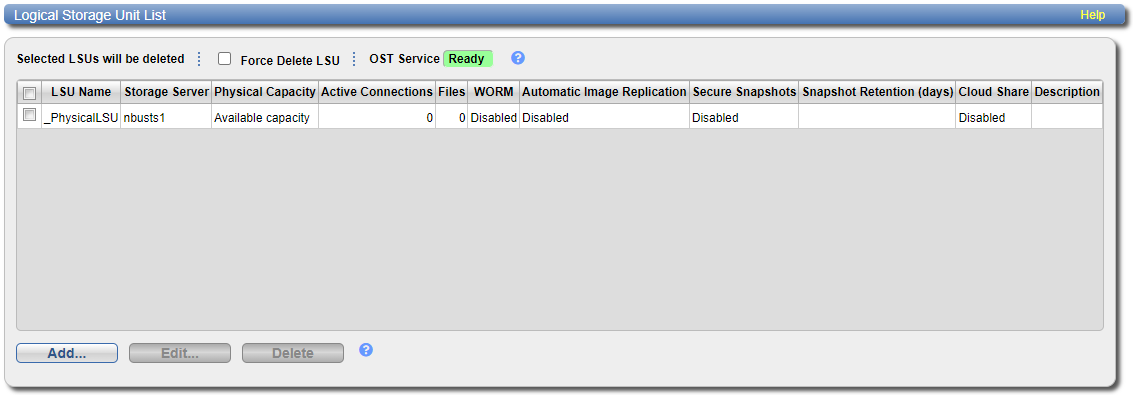
The Logical Storage Unit List displays the following information for all LSUs on the DXi:
| OST Service | The status of the OST service. OST settings can be configured in Ready, Stopped, or Verifying state. The OST server is available for backup only in Ready state. |
| LSU Name | The name of the LSU. |
| Storage Server | The storage server that contains the LSU. |
| Physical Capacity | The physical storage capacity of the LSU. |
| Active Connections | The number of active connections that store data in the LSU. |
| Backup Images | The current number of backup images of the LSU in the system. |
| WORM |
Indicates whether the OST WORM (Write Once, Read Many) feature is Enabled or Disabled for the LSU. For details, see Using OST WORM. |
| Automatic Image Replication |
The status of Automatic Image Replication (AIR) for the LSU (Enabled or Disabled), as well as the configured targets (if any). Note: To view details about the remote LSU if AIR is enabled, use the Edit Logical Storage Unit page. See Editing an LSU. |
| Secure Snapshots | Shows if Secure Snapshots for this LSU have been enabled or disabled. See Immutable Storage, Enabling Systemwide Secure Snapshots and Enabling Secure Snapshots for OST LSUs. |
| Snapshot Retention (days) |
Shows the number of days snapshots for the particular LSU are to be retained. |
| Description | A brief description of the LSU (if available). |
Additional Information
- The LSU limit is 1000.
- Click a column heading to sort the rows in the table by that column. Click the column heading again to reverse the sort order.
- The connections of a storage server that are used equals the data streams plus one for each LSU polling. A backup job may generate more than one data stream if the data can be read in parallel. For example, a policy that is backing up A, B, C, and D drives of a Windows system can generate four data streams in parallel.
Using OST WORM
You can enable the OST WORM (Write Once, Read Many) feature in both newly created and existing OST LSUs (Logical Storage Units). This new V5000 capability safeguards all data on WORM-enabled LSUs from being encrypted, modified, or deleted within a user-configured timeframe.
Note: OST WORM images are immutable (cannot be changed) as soon as they are created and indelible (cannot be deleted) until the backup policy retention period expires, unless extended.
Data saved on these LSUs is protected in two ways:
-
Immutability: WORM-enabled backup images are read-only and cannot be modified, corrupted, or encrypted following backup.
-
Indelibility: WORM-enabled backup images cannot be deleted before expiration, protecting share data against malicious deletion.
Important Notes
-
You must download the latest OST Plugin (version 11.0.0 or later) to use the OST WORM feature. See https://www.quantum.com/en/service-support/resources/other-pages/ost-client-plugins/.
-
This feature is not the same as Secure Snapshots, which saves and securely stores recoverable static images, or snapshots, of any specified share data. For more information on Secure Snapshots, see Immutable Storage.
-
The OST WORM feature cannot be enabled on LSUs that have Secure Snapshots enabled. The two features cannot be enabled on the same LSUs.
-
NTP must be enabled to use OST WORM.
Adding an LSU
Add an LSU to a storage server to present the storage capacity of the DXi as an LSU that is compatible with backup applications that support OST. You can add an LSU with a specific capacity, or you can add an LSU that uses the available capacity of the DXi.
Note: You must create a storage server before you can add an LSU. See Adding a Storage Server.
To add an LSU to a storage server:
-
Click Add.
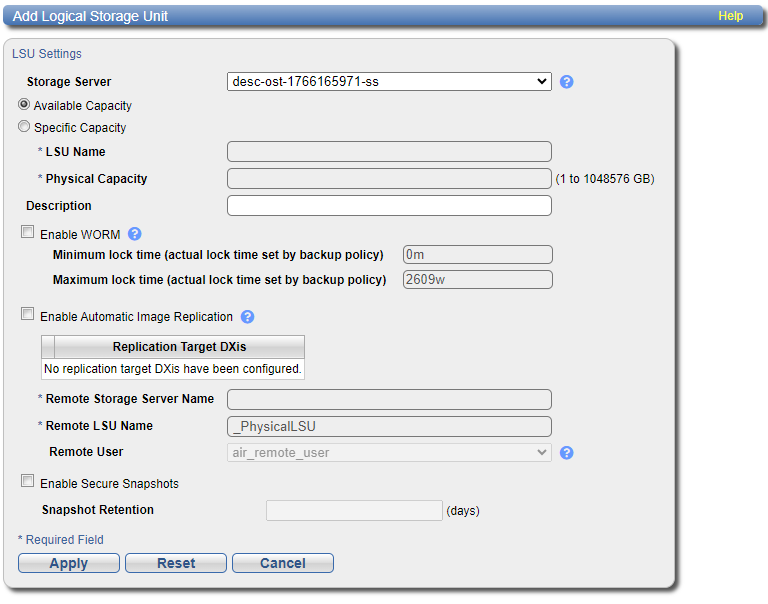
The Add Logical Storage Unit page displays.
-
Enter information about the LSU.
Storage Server Select the storage server that will contain the new LSU. Available Capacity (Recommended for best performance) Select this option to add an LSU that uses the available capacity on the system.
You cannot add an available capacity LSU to a storage server that already contains an LSU. Also, if you add an available capacity LSU to a storage server, you cannot add additional LSUs to that same storage server.
Note: After you add an LSU that uses the Available Capacity option, you cannot change the LSU to use the Specific Capacity option. Instead, you must delete the LSU, then add a new LSU and choose the Specific Capacity option. See Deleting an LSU.
Specific Capacity Select this option to specify the physical capacity of the LSU, and then enter the following information.
- LSU Name - Enter the name of the LSU.
- Physical Capacity - Enter the physical capacity of the LSU (1 to 1048576 GB).
Note: Specifying a specific size limits the size of the LSU in User Bytes. Quantum recommends setting LSUs to maximum size (1048576 GB) because spanning them on a backup is not possible.
Description (Optional) Enter a description of the LSU. You can define the LSU name or data content. Enable WORM (Optional) Complete the following steps to enable and set lock times for Write Once, Read Many protection for the new LSU:
-
Select the Enable WORM checkbox to enable OST WORM for the LSU.
-
Enter the Minimum lock time (indelible end time) to set the minimum time in seconds to activate the feature, following your saving and applying the OST Wizard screens at Step 4, Confirm.
-
Enter the Maximum lock time (indelible end time) to set the maximum time in seconds to protect the data in the WORM-enabled OST LSU.
Enable Secure Snapshots Check this box to enable or disable Secure Snapshots for this LSU. See Immutable Storage, Enabling Systemwide Secure Snapshots and Enabling Secure Snapshots for Individual Shares. Snapshot Retention (days) When snapshots have been enabled for this LSU, enter the number of days to retain each snapshot for this LSU.
Note: Once the retention period has been set, it can be extended but never reduced.
- (Optional) In the Description box, enter a brief description of the LSU.
-
(Optional) Select the Enable Automatic Image Replication check box to automatically replicate (duplicate) data on the LSU to a remote LSU on another DXi.
Automatic Image Replication (AIR) is disabled by default. If enabled, data on an LSU is automatically replicated to a remote LSU that resides on a DXi in a different NetBackup domain. The timing of the duplication, as well as the backup images that are duplicated, are determined by the storage lifecycle policies (SLPs) configured in NetBackup.
OST AIR requires NetBackup 7.1 or higher. For information about configuring NetBackup for Automatic Image Replication, see the OST Guide.
Note: You must configure at least one remote user before you can enable Automatic Image Replication. SeeManage Remote Users.
- If Automatic Image Replication is enabled, select the replication target you want to replicate images to. (You can select only a single target.) When images are replicated, data will be sent to the selected target.
-
If Automatic Image Replication is enabled, specify the following information:
Remote Storage Server Name The name of the remote storage server (on the target system) to replicate data to. The source and target systems must reside in different NetBackup domains.
Note: To configure the target system, see Replication Send.
Remote LSU Name The name of the LSU in the remote storage server that will receive the replicated data. Remote User The OST user credentials to use for authentication on the remote (target) system. The selected remote user must match an Authenticated User on the Configuration > OST > Manage Users page on the target system. See Manage Application Access Users. - Click Apply.
Editing an LSU
Edit an LSU to change its capacity, description, or automatic image replication settings.
To edit an LSU:
-
Select the LSU and click Edit.
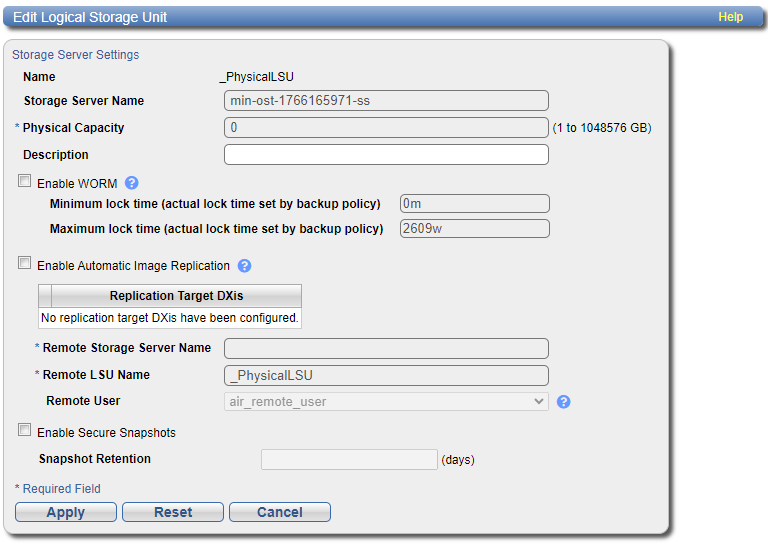
The Edit Logical Storage Unit page displays.
-
Enter information about the LSU:
Note: If you are editing an LSU, the Name option cannot be changed.
Physical Capacity (Specific capacity LSUs only) Enter the physical capacity of the LSU (1 to 1048576 GB).
Description (Optional) Enter a brief description of the LSU. Enable OST WORM (Optional) Complete the following steps to enable and set lock times for Write Once, Read Many protection for the new LSU:
-
Select the Enable WORM checkbox to enable OST WORM for the LSU.
-
Enter the Minimum lock time (indelible end time) to set the minimum time in seconds to activate the feature, following your saving and applying the OST Wizard screens at Step 4, Confirm.
-
Enter the Maximum lock time (indelible end time) to set the maximum time in seconds to protect the data in the WORM-enabled OST LSU.
Enable Secure Snapshots Check this box to enable Secure Snapshots for this LSU. See Immutable Storage, Enabling Systemwide Secure Snapshots and Enabling Secure Snapshots for OST LSUs.
Note: Deduplication must be enabled in order to enable Secure Snapshots.
Snapshot Retention (days) When snapshots have been enabled for this LSU, enter the number of days to retain each snapshot for this LSU.
Note: Any change to the share retention will affect only new snapshots. The retention for existing snapshots can be extended but never reduced.
-
-
(Optional) Select the Enable Automatic Image Replication check box to automatically replicate (duplicate) data on the LSU to a remote LSU on another system.
Automatic Image Replication (AIR) is disabled by default. If enabled, data on an LSU is automatically replicated to a remote LSU that resides on a system in a different NetBackup domain. The timing of the duplication, as well as the backup images that are duplicated, are determined by the storage lifecycle policies (SLPs) configured in NetBackup.
OST AIR requires NetBackup 7.1 or higher. For information about configuring NetBackup for Automatic Image Replication, see the OST Guide.
Note: You must configure at least one remote user before you can enable Automatic Image Replication. See Manage Remote Users.
- If Automatic Image Replication is enabled, select the replication target you want to replicate images to. (You can select only a single target.) When images are replicated, data will be sent to the selected target.
-
If Automatic Image Replication is enabled, specify the following information:
Remote Storage Server Name The name of the remote storage server (on the target system) to replicate data to. The source and target systems must reside in different NetBackup domains.
Note: To configure the target system, see Replication Send.
Remote LSU Name The name of the LSU in the remote storage server that will receive the replicated data. Remote User The OST user credentials to use for authentication on the remote (target) system. The selected remote user must match a local user on the Configuration > OST > Manage Users page on the target system. See Manage Application Access Users. - Click Apply.
Deleting an LSU
Delete an LSU if it is no longer needed. When you delete an LSU, all data stored on the LSU is lost.
Note: If you deleted the LSU from Veritas NetBackup or Veritas Backup Exec, you must wait several minutes before deleting the LSU from the DXi.
To delete an LSU:
- Select the LSU in the Logical Storage Unit List.
- (Optional) Select the Force Delete LSU check box to delete LSUs that are not empty.
- Click Delete.
You cannot delete an LSU if it has more than zero currently active connections. The number of active connections is displayed on the LSU page. See Logical Storage Unit List.
Note: You can select multiple LSUs to delete at once.
Normally, you cannot delete an LSU if it contains existing backup images. If for some reason you cannot remove files from the LSU, selecting the Force Delete LSU check box allows you to delete the LSU even though it is not empty.
