 minute read
Storage Servers
The Storage Servers page allows you to manage OST storage servers on the DXi. You can view information about existing storage servers, add or edit storage servers, and delete storage servers.
To access the Storage Servers page, on the OST page, click the Storage Servers tab.
Note: When there are connections to the storage server, the number in the Active Connections column will be highlighted and clickable. Click on the number to display a pop-up window showing client IP and Port, client hostname, client OS, and Plug-in information.
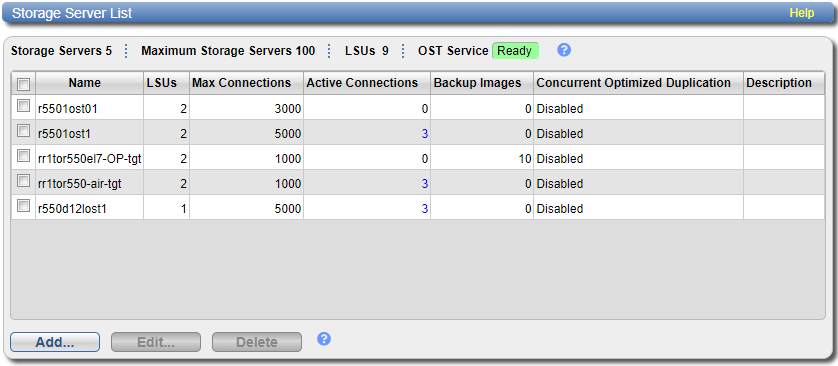
Note: When there are connections to the storage server, the number in the Active Connections column will be highlighted and clickable. Click on the number to display a pop-up window showing client IP and Port, client hostname, client OS, and Plug-in information.

Tasks
Use the Storage Servers page to perform the following tasks:
- View information about existing storage servers, See Storage Server List.
- Add a new storage server to the system. See Adding a Storage Server.
- Edit properties for an existing storage server. See Editing a Storage Server.
- Delete a storage server from the system. See Deleting a Storage Server.
 Storage Server List
The Storage Server List displays the following information for all storage servers on the DXi:
| Storage Servers | The number of storage servers that have been added to the system. |
| Maximum Storage Servers | The maximum number of storage servers that can be added to the system. |
| LSUs | The number of logical storage units (LSUs) that have been added to the system. See LSU. |
| OST Service | The status of the OST service. OST settings can be configured in Ready, Stopped, or Verifying state. The OST server is available for backup only in the Ready state. |
| Name | The name of the storage server. |
| LSUs | The number of LSUs that have been added to the storage server. |
| Max Connections | The maximum number of connections allowed to the storage server. |
| Active Connections | The number of currently active connections to the storage server. |
| Backup Images | The number of backup images on the storage server. |
| Concurrent Optimized Duplication | The status of Concurrent Optimized Duplication for the storage server (Enabled or Disabled), as well as the configured targets (if any). |
| Description | A brief description of the storage server (if available). |
Additional Information
- Click a column heading to sort the rows in the table by that column. Click the column heading again to reverse the sort order.
- The connections of a storage server that are used equals the data streams plus one for each LSU polling. A backup job may generate more than one data stream if the data can be read in parallel. For example, a policy that is backing up A, B, C, and D drives of a Windows system can generate four data streams in parallel.
Adding a Storage Server
Add a storage server to present the storage capacity of the DXi as LSUs that are compatible with backup applications that support OST. You can add up to 100 storage servers. When adding a storage server, you must also add an LSU to the storage server. For more information about LSUs, see LSU.
Note: Data on storage servers is always deduplicated.
To add a storage server:
-
Click Add.
The Add Storage Server page displays.

-
Under Add Storage Server, enter information about the storage server:
Name Enter the name of the storage server.
Caution: Do not use an underscore ( _ ) in the name of the storage server.
Note: OST storage server names are not case-sensitive. For example, if you create a storage server named ost1, you cannot create another storage server named OST1 because the system considers the names to be the same.
Description (Optional) Enter a brief description of the storage server. Max Connections Enter the maximum number of connections allowed to the storage server. To disable OST, enter 0 connections. To enable OST, enter 3 to 65536 connections.
Note: Quantum recommends setting Max Connections to 300.
Enable Concurrent Optimized Duplication Select the check box to enable optimized duplication during OST ingest.
Concurrent Optimized Duplication is disabled by default. If enabled, as data is written to the storage server, it is simultaneously replicated to the target DXi. When optimized duplication or Automatic Image Replication subsequently occurs, the operation is more efficient because a portion of the required data has already been replicated to the target storage server.
Note: To configure the target DXi, see Adding a Replication Target.
Note: When Concurrent Optimized Duplication is enabled, all data on the storage server is duplicated, not just the specified images.
- Select the check box for each optimized duplication target you want to duplicate the storage server to. When the storage server is duplicated, its data will be sent to all selected targets.
-
Under Logical Storage Unit, select the type of LSU to add to the new storage server:
Available Capacity (Recommended for best performance) Select this option to add an LSU that uses the available capacity on the system.
You cannot add an available capacity LSU to a storage server that already contains an LSU. Also, if you add an available capacity LSU to a storage server, you cannot add additional LSUs to that same storage server.
Note: After you add an LSU that uses the Available Capacity option, you cannot change the LSU to use the Specific Capacity option. Instead, you must delete the LSU, then add a new LSU and choose the Specific Capacity option. See Deleting an LSU.
Specific Capacity Select this option to specify the physical capacity of the LSU, and then enter the following information.
- LSU Name - Enter the name of the LSU.
- Physical Capacity - Enter the physical capacity of the LSU (1 to 1048576 GB).
Note: Quantum recommends setting LSUs to maximum size (1048576 GB) because spanning them on a backup is not possible.
- (Optional) In the Description box, enter a brief description of the LSU.
-
(Optional) Select the Enable Automatic Image Replication check box to automatically replicate (duplicate) data on the LSU to a remote LSU on another DXi.
Automatic Image Replication (AIR) is disabled by default. If enabled, data on an LSU is automatically replicated to a remote LSU that resides on a DXi in a different NetBackup domain. The timing of the duplication, as well as the backup images that are duplicated, are determined by the storage lifecycle policies (SLPs) configured in NetBackup.
OST AIR requires NetBackup 7.1 or higher. For information about configuring NetBackup for Automatic Image Replication, see the OST Guide.
Note: You must configure at least one remote user before you can enable Automatic Image Replication. See Manage Remote Users.
- If Automatic Image Replication is enabled, select the replication target you want to replicate images to. (You can select only a single target.) When images are replicated, data will be sent to the selected target.
-
If Automatic Image Replication is enabled, specify the following information:
Remote Storage Server Name The name of the remote storage server (on the target DXi) to replicate data to. The source DXi and target DXi must reside in different NetBackup domains.
Note: To configure the target DXi, see Replication Send.
Remote LSU Name The name of the LSU in the remote storage server that will receive the replicated data. Remote User The OST user credentials to use for authentication on the remote (target) DXi. The selected remote user must match an Authenticated User on the Configuration > OST > Manage Users page on the target DXi. See Manage Application Access Users. - Click Apply.
Editing a Storage Server
Edit a storage server to change the description of the storage server or the maximum number of allowed connections.
To edit a storage server:
-
Select the storage server and click Edit.
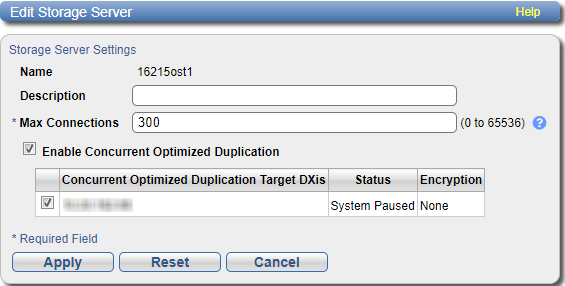
The Edit Storage Server page displays.
-
Enter information about the storage server:
Note: If you are editing a storage server, the Name option cannot be changed.
Description (Optional) Enter a brief description of the storage server. Max Connections Enter the maximum number of connections allowed to the storage server (3 to 65536).
The maximum number of connections cannot be changed if the storage server has more than zero currently active connections. The number of active connections is displayed on the OST page. See Storage Server List.
Note: Quantum recommends setting Max Connections to 300.
Enable Concurrent Optimized Duplication Select the check box to enable optimized duplication during OST ingest.
Concurrent Optimized Duplication is disabled by default. If enabled, as data is written to the storage server, it is simultaneously replicated to the target system. When optimized duplication or Automatic Image Replication subsequently occurs, the operation is more efficient because a portion of the required data has already been replicated to the target storage server.
Additional Information
- To configure the target system, see Replication Send.
- When Concurrent Optimized Duplication is enabled, all data on the storage server is duplicated, not just the specified images.
- Select the check box for each optimized duplication target you want to duplicate the storage server to. When the storage server is duplicated, its data will be sent to all selected targets.
- Click Apply.
Deleting a Storage Server
Delete a storage server if it is no longer needed. When you delete a storage server, all data stored on the storage server is lost.
Note: If you deleted the storage server from Veritas NetBackup or Veritas Backup Exec, you must wait several minutes before deleting the storage server from the DXi.
To delete a storage server:
- Select the storage server in the Storage Server List.
- Click Delete.
You cannot delete a storage server if it has more than zero currently active connections. The number of active connections is displayed on the OST page. Also, you cannot delete a storage server if it contains LSUs. Before deleting the storage server, you must first delete any LSUs it contains. See Storage Server List and Deleting an LSU.
Note: You can select multiple storage servers to delete at once.
