minute read
Configure Multi-Factor Authentication (MFA; two-factor authentication; 2FA)
Multi-Factor Authentication (MFA) is a security process that adds an extra layer of protection to verify a user's identity when they log in. In addition to entering a username/email and password, users must also provide an access code that is sent to their registered email address, or enter the code generated on your mobile device from one the following supported authenticator apps:
-
Google Authenticator
-
FreeOTP
-
Microsoft Authenticator
How the Login Process Works
-
Login Attempt
The user enters their username or email and password on the Quantum Unified UI login page.
-
Verification
After entering the password, the next step depends on the selected authentication method:
-
Email-based authentication: A one-time code is sent to the user’s registered email address.
-
Authenticator app: The user is prompted to enter the code generated by their mobile authenticator app.
-
-
Enter the Code
The user retrieves the one-time code and enters it on the login page.
-
Access Granted
If the code is valid, the user is granted access to their account.
This method ensures that, even if an attacker knows the user's password, they would also need access to the user's email account, or an authenticator application on the mobile device to complete the login process. This significantly increases the security of the authentication process.
Prerequisites to Configure MFA
-
You must be logged in as a user that contains the quantum-user-management-admin role (see User Roles).
-
You must have SMTP enabled to receive an MFA access code at the user's email account (to enable SMTP, click System Settings on the top navigation menu of the Myriad UI, and then navigate to Email Settings).
Do the following to configure MFA.
-
If needed, log in to the UUI. See Access the Quantum Unified User Interface (UUI).
-
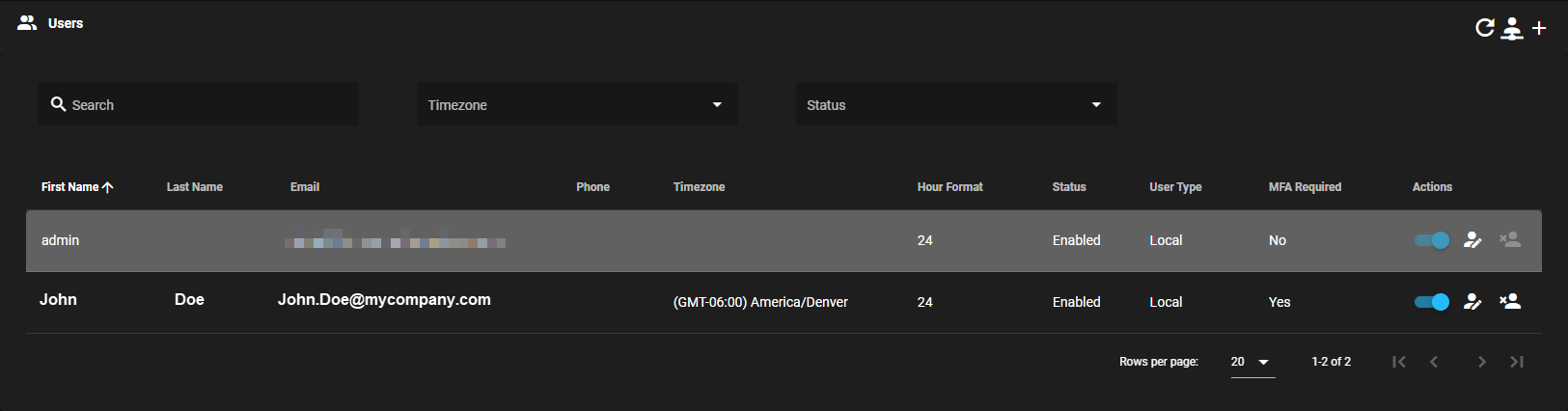
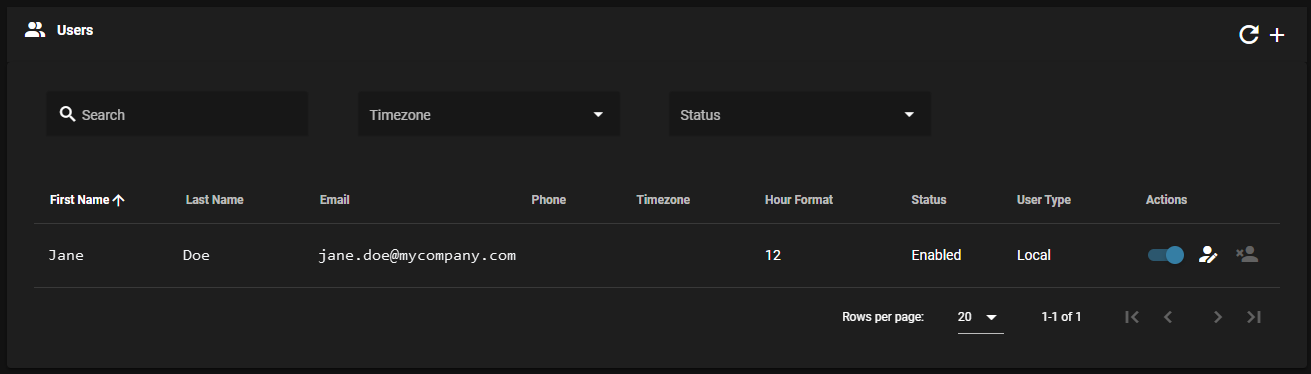
In the top navigation menu, click UI Settings/Help > Users. The Users page appears.
(click image to enlarge)
-
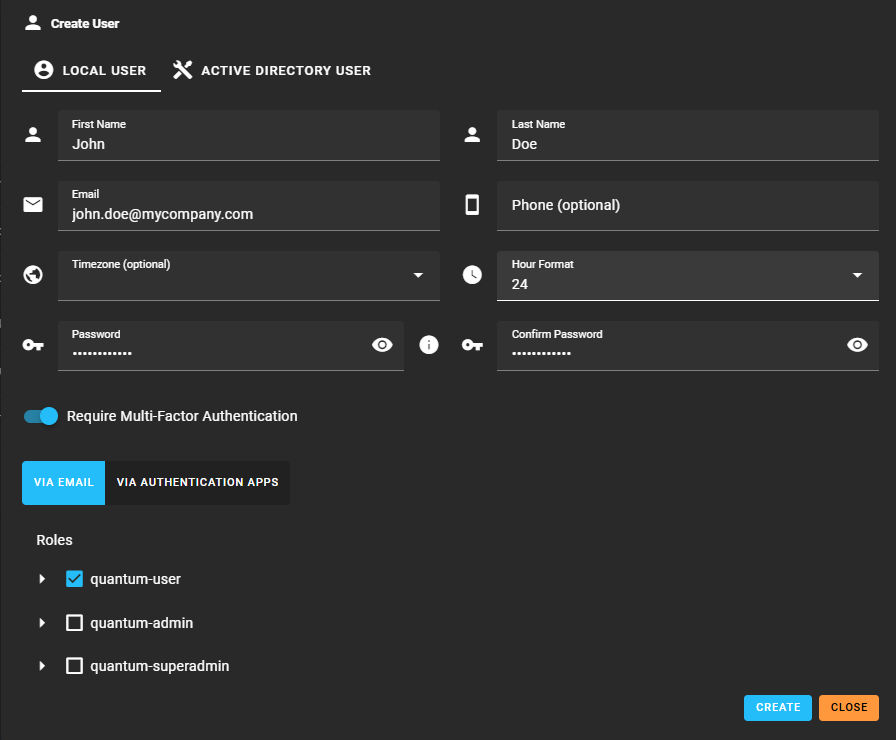
Click the plus icon (
 ) to add a user. The Create User dialog appears.
(click image to enlarge)
-
You can create a local user or an active directory user (to enable the Active Directory User tab, you must first configure active directory. Click the System Settings cogwheel in the top-right corner, and then click the Active Directory button).
 User Roles
Below are the available roles for a Myriad user:
-
quantum-apigw-admin allows setting SSL certificates.
-
quantum-appliance-controller-admin allows read-write commands on Appliance Controller.
-
quantum-appliance-controller-user allows read-only commands in Appliance Controller.
-
quantum-client-management-admin allows adding, updating, deleting clients and assigning roles.
-
quantum-email-alerts-admin manage email alerts.
-
quantum-flexsync-admin allows read-write commands in FlexSync.
-
quantum-flexsync-user allows read-only commands in FlexSync.
-
quantum-internal-registration allows node registration on the gateway (only assign to clients, not users).
-
quantum-license allows viewing the license report.
-
quantum-log-admin allows deleting logs and setting log age threshold.
-
quantum-log-user allows viewing logs.
-
quantum-myriad-admin allows read-write Myriad commands.
-
quantum-myriad-user allows read-only Myriad commands.
-
quantum-software-admin manage software updates.
-
quantum-stornext-admin allows read-write commands in StorNext and all File System Pooling commands.
-
quantum-stornext-tiering-admin allows read-write commands in File System Pooling.
-
quantum-stornext-tiering-user allows read-only commands in File System Pooling.
-
quantum-user-management-admin allows adding, updating, deleting users and assigning roles.
To simplify assigning a set of roles that are assigned to the same user, you can assign a composite role instead of the individual roles listed above. When you assign one of the composite roles below, the user has all the roles associated with the composite role.
Below are the available composite roles for a Myriad user:
-
quantum-user
-
quantum-appliance-controller-user
-
quantum-flexsync-user
-
quantum-log-user
-
quantum-myriad-user
-
quantum-stornext-tiering-user
-
quantum-stornext-user
-
-
quantum-admin
-
quantum-appliance-controller-admin
-
quantum-flexsync-admin
-
quantum-log-admin
-
quantum-myriad-admin
-
quantum-stornext-admin
-
quantum-stornext-tiering-admin
-
-
quantum-superadmin
-
quantum-apigw-admin
-
quantum-appliance-controller-admin
-
quantum-client-management-admin
-
quantum-email-alerts-admin
-
quantum-flexsync-admin
-
quantum-internal-registration
-
quantum-license
-
quantum-log-admin
-
quantum-myriad-admin
-
quantum-software-admin
-
quantum-stornext-admin
-
quantum-stornext-tiering-admin
-
quantum-user-management-admin
-
-
-
Enable Require Multi-Factor Authentication.

- Click one of the following options:
- VIA EMAIL
- VIA AUTHENTICATION APPS
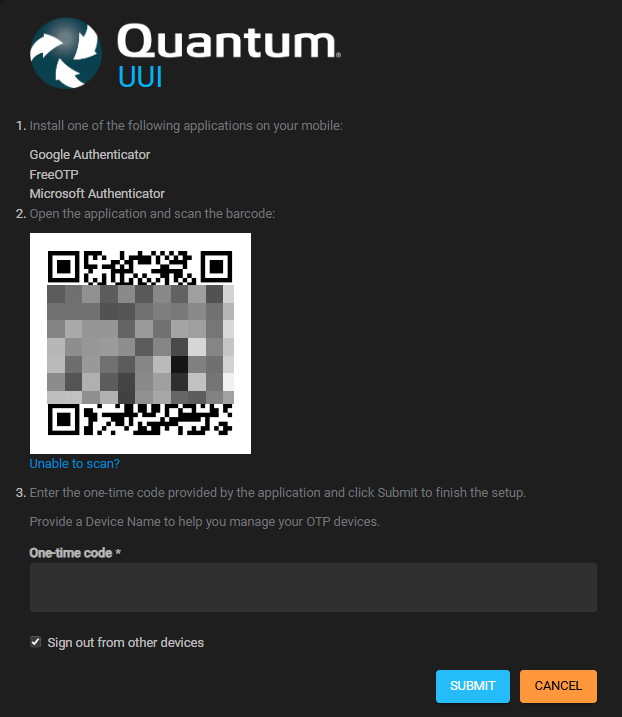
If you select Via Authentication Apps as your login method, the first time you access the UUI, you’ll be prompted to set up an authenticator app on your mobile device.
-
Complete the form and then click CREATE, or click CANCEL to abort the operation and return to the previous page. If successful, the User <email of user> created. dialog appears and your user appears on the Users page.
(click image to enlarge)