 minute read
Viewing and Modifying Secure Share Snapshots
DXi Secure Snapshots enable users to create point-in-time physical copies, or snapshots, of shares or OST LSUs. Each snapshot is timestamped, secured and isolated in a non-network-addressable blockpool located in the DXi system, enabling fast recovery from ransomware attacks.
Use the Shares Snapshots List to:
- See all Secure Snapshots taken of selected shares in your system.
- Select point-in-time snapshots of individual shares to:
- Extend snapshot retention time in days, beyond the time period set when the snapshot(s) were created.
- Recover share snapshots to new shares.
 Viewing Existing Share Snapshots
Use the following steps to see all existing share snapshots:
- From the DXi console, select Secure Snapshots on the left side of the screen. The Shares tab displays by default.
- In the Snapshots List, click the plus-sign icon next to the desired share to show the system's existing snapshots for that share.
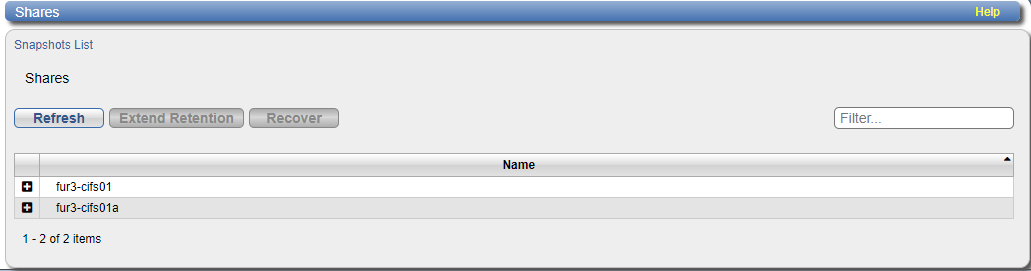
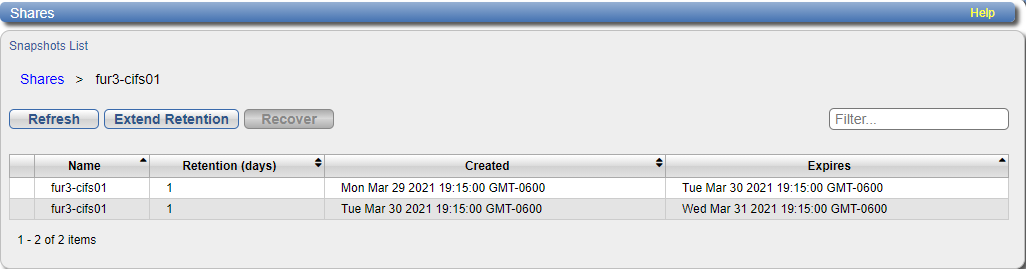
The Snapshots List now shows all snapshots for the selected share. You can click Shares to return to the parent list.
Extending Snapshot Retention Periods
Use the following steps to extend the retention time in days for all share snapshots in the system, or for any individual snapshot.
- Use the instructions in Viewing Existing Share Snapshots to access snapshots of the desired share(s) from the Shares Snapshots List.
- Click on any snapshot to select it, then click Extend Retention.
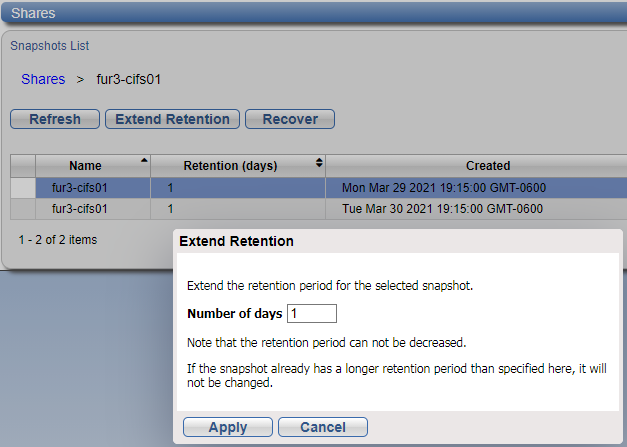
- In the Extend Retention dialog for the selected snapshot, type the new Number of days to retain the snapshot, then click Apply to save the extended retention period and close the dialog.
Note: Before clicking in a single row to select the share snapshot to extend, the Extend Retention button displays ungrayed (active).
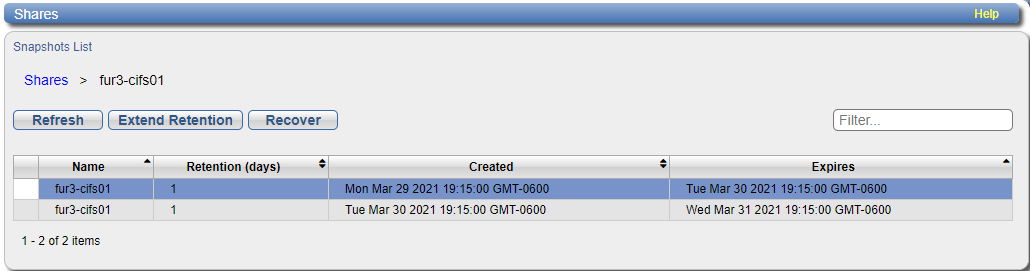
Note: When you click in the box or hover your mouse cursor over the box, up-or-down arrows appear next to the existing number that you can either use to increase the number of days. You can still click in the box and type the new number.
Recovering Share Snapshots
Complete the following steps to recover a snapshot for a share:
- Use the instructions in Viewing Existing Share Snapshots to access the desired share snapshot(s) in the Shares Snapshots List.
- Click on any snapshot to select it, then use the specific date and time for the snapshot you want to recover from the Created column, then click Recover.
- In the Recover to Share dialog, type a name for the share you are recovering from the snapshot, like recovered-fur3-cifs02 then click Apply to begin the recovery.
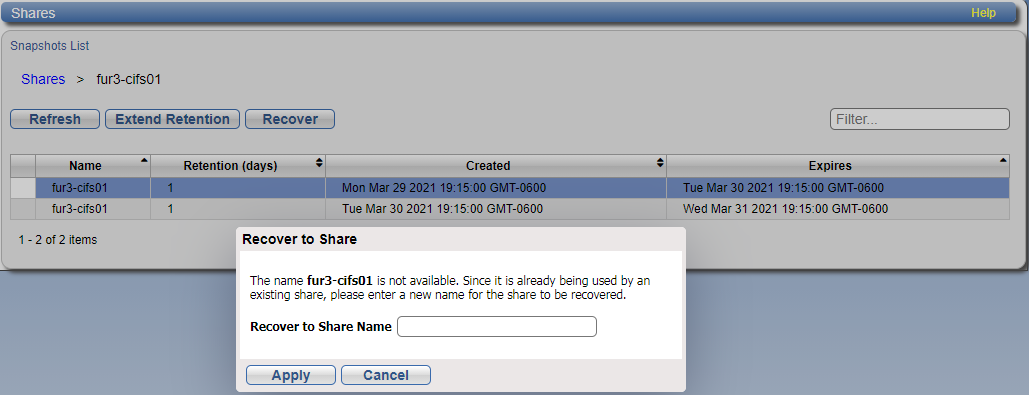
Note: Recovery time varies and depends on the volume of share data.
