Interface Overview
The following illustration represents the main menu screen in the ActiveScale SM
Figure 1: Main menu
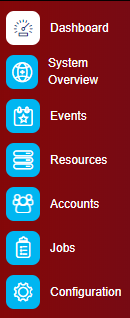
Table 1: Main Menu
| Icon | Description |
|---|---|
|
Dashboard |
Navigates to the dashboard. |
|
System Overview |
Navigates to the System Overview page. The System Overview page displays metrics related to capacity, system performance, durability policy, power usage, CPU and memory usage, replication, and S3. |
|
Events |
Navigates to the Events page. The Events page provides near-real-time system events (messages). |
|
Resources |
Navigates to the Resources page. The Resources page displays system name, serial number, software, hardware failures, hardware inventory, and other information about hardware components in the environment. |
|
Accounts |
Navigates to the Accounts page. The Accounts page has tabs for Accounts By Capacity, Accounts By Object Activity, Accounts and User Management, and System Bucket. |
|
Jobs |
Navigates to the Jobs page. The Jobs page lists jobs in the environment. |
|
Configuration |
Navigates to the Configuration page. General info, security, network, object storage, notifications, and download information are available on this page. This page has links to the System, User & Group, and Upgrade pages. |
 About Alerts
The top banner displays the number of CRITICAL, ERROR, and WARNING events in the upper right corner, as illustrated below:
Figure 2: Alerts
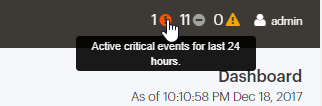
The top banner displays the number of CRITICAL, ERROR, and WARNING events in the upper right corner.
About the Dashboard
This section describes the ActiveScale SM dashboard.
Figure 3: ActiveScale SM Dashboard

The dashboard reports from all areas of system status, and allows navigation to those areas. It displays individual tiles for Resources, Capacity, Durability Policy, Daily Performance, and Data Metrics.
Table 2: Dashboard Elements
| Item | Description |
|---|---|
|
System Type |
Indicates that the system is single site or multi-site. |
|
Site Name and Number |
The site name and its factory-assigned site number, are displayed in the top banner. Click the rack image to open the Resources page. |
|
System Health |
The system health icon indicates overall system health: status of hardware components, response times, status of objects with respect to the durability policy, and so on. |
|
Resources Tile |
Displays a generic system graphic with an icon overlay indicating hardware health. |
|
Capacity Tile |
Displays the total customer-usable capacity of the entire environment/deployment. Customer-usable capacity excludes the space reserved by the system for internal tasks. |
|
Durability Policy Tile |
Displays the current safety level of object in the environment. |
|
Daily Performance Tile |
Displays the throughput of traffic over the public networks for the last 24 hours. |
|
Data Metrics Tile |
Displays various metrics related to objects in the environment. |
Resources Tile
Figure 4: Dashboard > Resources

The Resources tile displays a generic system graphic with an icon overlay indicating hardware health. A yellow icon indicates that there are issues that need your attention. A red icon indicates that there is failed hardware that you must replace as soon as possible (such as PSUs, FAN's, metadata SSD’s and disks with Operating System partitions).
Note: The icon overlay on the Resources tile only indicates hardware status, whereas the System Health icon in the top banner indicates overall system health: status of hardware components, response times, status of objects with respect to the durability policy, and so on.
Note: It is advised to replace all decommissioned disks before the system runs full. Disks should be replaced with some urgency when you start receiving events of the type [NO_AVAILABLE_COLUMN_RESOURCES]
Hover the cursor over the system graphic to see a tool tip with more information (number of System Nodes and Columns). For more details about hardware status, click the graphic to go to the Resources page.
The Capacity Tile
This list defines the content of the images below:
-
Used: capacity currently in use by live objects.
-
Used - Tape Staging Area: disk capacity temporarily in use by objects that are moving to tape (only when tape is enabled).
-
Free - Pending Cleanup: capacity occupied by already deleted objects for which ActiveScale has temporarily postponed space reclaim.
-
Free - Capacity that can be used to store new data.
Figure 5: Dashboard > Capacity

Figure 6: Dashboard > Capacity - Tape Enabled
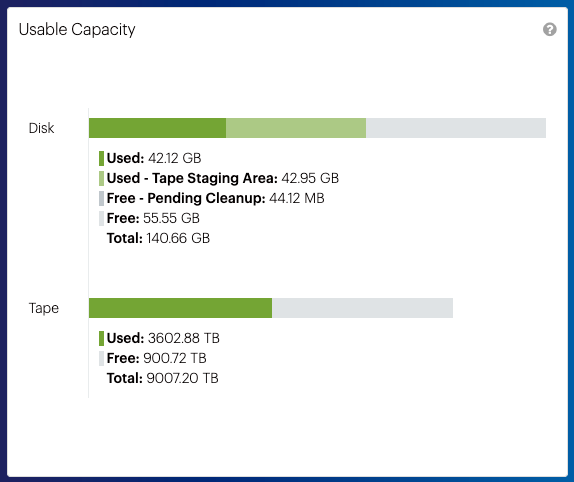
The Capacity tile displays the total customer-usable capacity of the entire environment/deployment and the percentage of that capacity currently used. Customer-usable capacity excludes the space reserved by the system for internal tasks, but does include system files such as logs, reports and upgrade files.
Note: Raw capacity is not an accurate reflection of available capacity due to erasure coding overhead, which varies for large and small files but depends on the large/small storage policy in use.
Click the Capacity tile to open the System Overview > Capacity page.
Durability Policy Tile
Figure 7: Dashboard > Durability Policy

The Durability Policy tile displays the data safety of the system, which is based on its storage policies. The first number in a storage policy indicates how many disks an object is spread over, while the second part indicates how many of these disks can be unavailable before the ActiveScale OS is no longer able to reconstruct the object.
For example, 18/5 means that an object is divided into 18 segments and each segment is stored on a different disk, and that the ActiveScale OS can reconstruct the object even if there are up to 5 missing object segments.
For a fully healthy 13/4 system, the data safety is 4. When a single disk fails, repair starts, and the data safety drops to 3. If an additional disk fails, the data safety becomes 2. ActiveScale incorporates a patented repair agent technology (known as Dynamic Data Repair) that prioritizes the repair of objects which are spread across two or more failed disks.
Note: If you did not enable the small file policy at initial bringup, Small object is set to Disabled.
Click the Durability Policy tile to display the System Overview > Durability Policy page. A policy name displays.
Daily Performance Tile
Figure 8: Dashboard > Daily Performance

The Daily Performance tile displays the system throughput of traffic over the public networks for the last 24 Hours. The system throughput displayed is an aggregate from all racks in the system and is calculated based on network packet transmit and receive statistics at fixed time intervals on all public NICs on all System Nodes. The system throughput displayed is a system overall value combining File and S3 traffic. Throughput data resets when the system is rebooted. System Throughput | Read is an aggregate of IP packets received. System Throughput | Write is an aggregate of IP packets transmitted.
Object Transactions | File Transactions| respectively display an aggregate of overall S3 operations and File operations per second.
Objects Response Time | File Response Time | respectively display an aggregate of overall S3 and File response times.
For more details about throughput, click the graphic to go to the System Performance page.
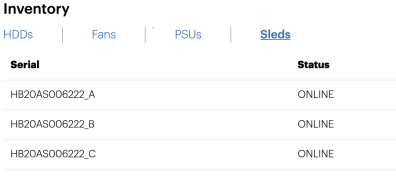
JBOD Resources Page
When the X200 is installed with JBODs, the JBOD resources page shows a 'Sleds' overview. For X100, these are physical Sleds, for X200, they are virtual.
Data Metrics Tile
Table 3: Dashboard > Data Metrics

The Data Metrics tile displays various metrics:
Identities:
Total is the total number of accounts and Users. For example, if there's one account with 4 users, the value of this metric is 5.
Accounts is the total number of accounts in the system.
Users is the total number of users in the system.
ActiveScale OS configures an average object size that optimizes storage capacity, thereby minimizing stranded capacity. The average object size configured for your system is based on the storage policy you select at initial bring up in combination with the system characteristics.
Note: Object metrics and File metrics are not real-time. The system runs a background task which updates the metrics once daily.
Note: The object metrics and identities metrics also include system files (logs, reports, upgrade files) and internal system accounts and users.“
Objects:
Buckets is the total number of active (non-deleted) buckets in the system.
Objects is the total number of objects in the system.
Avg Size is the average size of the objects in the system.
Files:
Exports is the total number of exports in the system.
Files is the total number of files in the system.
Avg Size is the average size of the files in the system.
Click the Data Metrics tile to open the Accounts > Accounts by Capacity page.
