|
How to Create a PDF |
VS2124 Site Planning
 Overview
The Quantum VS-Series VS2124 enables you to efficiently record and store surveillance footage and industrial applications. Use the VS2124 to run an entire security infrastructure on a single cloud-like platform.
Your VS2124 arrives pre-configured and optimized for use with VMS applications, allowing you to run an entire security infrastructure on a single platform. VS2124 architecture can handle the streaming performance required from ten cameras to tens of thousands of cameras, running the VMS management server, video recording servers, and other applications for building operations and security infrastructure.
VS-Series products are:
- Efficient: With the highest camera density and a software architecture that enables users to run their entire security infrastructure on a single hyperconverged platform.
- Flexible: The VS-Series uses a software-defined, cloud-like platform that offers the broadest range of deployment options. Many appliances can scale-out (for more cameras), or scale-up (for increased retention).
- Easy to deploy, operate and maintain: The VS-Series comes pre-installed with certified VMS applications, and can be installed and configured in minutes. And it is backed by the world-class service and support of Quantum and our integrator partners.
- Resilient: VS-Series software can tolerate and work around hardware and software issues, and is designed to eliminate downtime.
Learn more at: Quantum.com > Products > Hyperconverged Surveillance Platform > VS-Series.
Included with Your VS2124
Your VS2124 arrives at your installation site with the following software installed and/or configured, as noted below.
| Software | Description |
|---|---|
| Host Operating System (OS) | Base operating system software for the VS2124 server. This software contains the hypervisor capabilities which enables the Windows software to be run in a virtual machine. |
| VMS |
Milestone Video Management Software running in a Windows virtual machine (VM). |
| Windows VM |
Windows Server 2k16 virtual machine, which provides the platform to run the Milestone Video Surveillance software and connections to the surveillance cameras. |
| Milestone XProtect |
Video system management software. Install files provided and available at Windows Virtual Machine login. Use these files to configure and manage your company's video installation. |
|
Quantum Cloud Storage Platform (Quantum CSP) |
The Quantum CSP is a software-defined storage platform specifically designed for storing video and other forms of high-resolution content. Like storage technologies used in the cloud, the Quantum CSP is software-defined, can be deployed on bare metal, as a VM, as part of a hyperconverged infrastructure, or in other ‘cloud-ready’ infrastructures. |
Installation
The VS2124 is factory configured and installed only by qualified Quantum Service or Service Partner installers. This section includes site planning for your VS2124 installation. For more installation details, contact your Quantum Service or Service Partner installer.
Site Planning Considerations
Quantum recommends installing the system in a controlled or restricted area to prevent access by untrained personnel. Your VS2124 should be located in a clean, dust-free, well ventilated room, avoiding areas where heat, electrical noise, and electromagnetic fields are generated.
Caution: Quantum recommends that system installation is performed only by qualified personnel.
When choosing an installation site for the VS2124 system, consider all of the following requirements.
Rack Requirements
Your VS2124 requires a rack that will hold a server that is at least 17.2 inches (437 mm) wide with rail assembly and at least 41 inches (1042 mm) deep for the server and cable management arm assembly.
Rack Space Requirements
| Server Dimensions and Rack Requirements | |
|---|---|
|
Height |
2U 3.5 in. (89 mm) |
|
Width (side to side) |
17.2 in. (437 mm) |
|
Depth (front to back) |
34 in. (863 mm) |
| Depth with Cable Management | 41 in. (1042 mm) |
| Rack Clearance | Leave enough clearance in front of the rack so that you can open the front door completely (~25 inches) and approximately 30 inches of clearance in the rear of the rack, to allow sufficient space for airflow and service access. |
Rack Precautions
WARNING: To prevent bodily injury when mounting or servicing this unit in a rack, you must take special precautions to ensure that the system remains stable.
- If the rack is provided with stabilizing devices, install the stabilizers before mounting or servicing the unit in the rack.
- Ensure that the leveling jacks on the bottom of the rack are extended to the floor so that the full weight of the rack rests on them.
- In single-rack installations, stabilizers should be attached to the rack. In multiple-rack installations, the racks should be coupled together.
- Always make sure the rack is stable before extending a server or other component from the rack.
- You should extend only one server or component at a time; extending two or more simultaneously may cause the rack to become unstable.
- This unit should be mounted at the bottom of the rack if it is the only unit in the rack.
- When mounting this unit in a partially filled rack, load the rack from the bottom to the top with the heaviest component at the bottom of the rack.
Installation and Integration Services
Installation and integration of the VS2124 system by Quantum is required. Please contact your Quantum sales representative to discuss installation services.
VS2124 Network Setup
After hardware has been installed and initially configured, you are ready to use your VS2124. The remote management console allows you to reconfigure your VS2124 at any time.
Required Network Information
To utilize the remote management console of the VS2124, you must connect it to your network.
Note the following considerations:
- At installation, your Quantum Service or Service Partner will create a static IP address.
- The default IP address for the BMC console port is 192.168.17.21 with netmask of 255.255.255.0.
You and other administrative users can always return to the remote management console to modify all VS2124 settings, including network settings. Contact Quantum Technical Support for additional information on reconfiguring your VS2124.
Network Configuration
During network configuration at your site, each individual interface on the VS2124 can be configured as a subnet with its own network settings. Each physical Ethernet port arrives configured as a Management or CameraNet interface. In addition, in Windows you can also create bonded interfaces (logical ports) for the CameraNet ports, combining two or more interfaces for a single physical port.
The CameraNet interfaces and their physical ports are configured for video network use. If you are considering reconfiguring these interfaces or routing different traffic types, as well as firewall capability, these reconfigurations must be controlled using your company's network infrastructure switches that are connected to the VS2124.
Note: Each configured network interface requires its own set of network settings (IP address, network mask, and gateway).
Bonding Network Interfaces
For effective bonded network use, a properly configured network switch is required. (A network switch is not supplied with the VS2124.) The VS2124 bonding settings must match the switch settings. If the switch settings and the VS2124 settings do not match, your system may become inaccessible through the switch.
Planning Network Configuration
Prior to installing the VS2124, make sure to work with your network administrator to determine the network settings that will be needed to properly integrate the VS2124 with your network infrastructure. Consider the following questions:
- What hostname will the VS2124 be assigned?
- What are the default gateway and DNS servers for your company?
- How many Ethernet cables (10 GbE optical) will be connected to the VS2124?
- Will you configure Ethernet ports individually or reconfigure them, bonding multiple ports into a single network device?
- If bonding Ethernet ports, what bonding mode is compatible with your network switch (Round Robin, LACP, or Active Backup)?
- How many IP addresses (network interfaces) are required, and what traffic types will be allowed on each interface (Management, Data, Cameras, additional servers)?
- Will an interface use Jumbo Frame MTU size?
- What is the IP address, network mask, and gateway to use for each network interface?
- Will host routes be required to communicate with systems that are on subnets not accessible through the default gateway?
VS2124 default network IP addressses and initial installation credentials are available at Access Default Login Credentials. In addition, you can print a copy of the blank Networking IP List to help you record your IP addresses. If you are installing multiple VS2124 systems, Quantum recommends that you record all IP address and login information.
VS2124 Physical Specifications
| Component | Shipping Information |
|---|---|
| Server |
Note: Rails are 41” long. |
Connectivity
| Component | Specification |
|---|---|
| Networking | (4) 10GbE SFP+ ports (with optical transceivers) |
| Management | (1) RJ45 Dedicated IPMI port |
| USB |
(2) Rear USB 3.0. USB ports allow direct console connection using a mouse and keyboard. |
| Ethernet Cable Ports | (4) 10 GbE ports - 10 GbE Ethernet connections (optical) for NAS or OST connectivity. |
| Clustering Network Ports | (1) card containing (2) 10GbE Ports for configuring nodes in a High Availability (HA) cluster. |
|
Ethernet Cable Types |
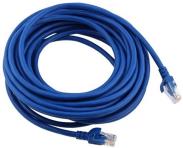
10 GBase-T CAT6 Cable
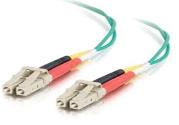
10Gbe Optical Cable
|
|
Power Outlets |
(2) USA type 3-prong power outlets (Nema 5-15) or (2) C13 type 3‑prong power outlets (IEC320 C13). |
|
Hardware |
4 ports 10GbE Ethernet (optical) |
See for all VS2124 port features and indicators.
Storage Capacity
| Component | Specification |
| Drive Slots and Drives |
|
| Capacity Expansion | Yes, to a maximum of 60 drives |
Power Requirements
| Component | Specifications |
| Power Supplies (2) |
|
| AC Voltage |
|
Electrical Specifications
Avoid Circuit Overloading
Please carefully consider the connection of your VS2124 to your power supply circuitry and the effect that any possible circuit overloading might have on your existing overcurrent protection and power supply wiring. Consult the equipment nameplate ratings when addressing this concern.
Additionally, to complete redundant power requirements for the system, you must plug the two power supplies into two separate power breaker sources.
Use a Reliable Ground
A reliable ground must be maintained at all times. To ensure this, the rack itself should be grounded. Pay particular attention to power supply connections other than the direct connections to the branch circuit (for example, the use of power strips).
Environmental Conditions
The installation site must have the following environmental conditions:
- RoHS Compliant
- Operating Temp: 10C to 35C (50F to 95F)
- Non-operating Temp: -40C to 60C (-40F to 140F)
- Operating Relative Humidity: 8% to 95% (non-condensing)
- Non-operating Rel. Humidity: 5% to 95% (non-condensing)
Regulatory Compliance
| Item | Specifications |
| Electromagnetic Emissions | FCC Class A, EN 55032 Class A, EN 61000-3-2/3-3, CISPR 32 Class A |
| Electromagnetic Immunity | EN 55024/CISPR 24, (EN 61000-4-2, EN 61000-4-3, EN 61000-4-4, EN 61000-4-5, EN 61000-4-6, EN 61000-4-8, EN 61000-4-11) |
| Safety | CSA/EN/IEC/UL 60950-1 Compliant, UL or CSA Listed (USA and Canada), CE Marking (Europe) |
| Other | VCCI-CISPR 32 and AS/NZS CISPR 32 |
| Environmental | Directive 2011/65/EU, Delegated Directive (EU) 2015/863 and Directive 2012/19/EU |
| Safety | |
| RoHS |
|